
Three Years of SMB Pain From a Single Phantom DNS Record
A customer's random application time-outs traced through SMB client logs to a stale _msdcs delegation pointing at a demoted DC, and the cleanup.
Blog / Category
Windows Server 2022 in practice, mostly from customer environments. Roles, upgrades, print, DFS, Group Policy and the things that break at 3 a.m.
52 posts
A customer's random application time-outs traced through SMB client logs to a stale _msdcs delegation pointing at a demoted DC, and the cleanup.
Let helpdesk staff reset AD passwords without admin rights: a delegated svc_passwordreset account, a Password Resetters group, LDAPS and a small Flask app.
Windows Server in-place upgrade blocked by Identity Management for UNIX: remove IDMU with DISM or comment out IDMUUpgradeComplianceCheck in compliance.ini.
Install Microsoft 365 Apps on an RDS host with the Office Deployment Tool and shared computer licensing, tune Office via ADMX policies, publish RemoteApps.
Full Remote Desktop Services build on Windows Server 2022: AD CS auto-enrollment, Broker, Web Access and Gateway, a Let's Encrypt certificate, FSLogix and SSO.
Reclaim disk space on a DFSR file server: lower the Conflict and Deleted quota and empty the ConflictAndDeleted folder with WMIC cleanupconflictdirectory.
The July 2024 CrowdStrike Falcon Sensor update that blue-screened Windows PCs and servers worldwide, and the safe mode fix: delete C-00000291*.sys.
Chapter 6 of the Hyper-V guide: full, incremental and differential backups, Windows Server Backup vs DPM and Veeam, scheduling, and restoring a VM.
Chapter 5 of the Hyper-V guide: set up Live Migration between hosts, enable Hyper-V Replica for disaster recovery and turn on nested virtualization.
Chapter 4 of the Hyper-V guide: VHD vs VHDX, fixed, dynamic and differencing disks, creating and attaching disks, expanding them and extending the volume.
Chapter 3 of the Hyper-V guide: External, Internal and Private virtual switches, attaching VMs, setting guest IPs, VLAN IDs and bandwidth limits.
Chapter 2 of the Hyper-V guide: create your first VM with the wizard, pick Generation 1 or 2, assign memory and a VHDX, install the OS, take checkpoints.
Chapter 1 of the Hyper-V guide: what Hyper-V is, which Windows Server and Windows 10/11 editions include it, system requirements and enabling the role.
Ways to support Mylemans Online: YouTube subscriptions and memberships, Ko-fi, GitHub Sponsors, the Discord server and sharing the content.
Transfer files through the Remote Desktop Web Client's virtual drive: enable File Transfer on connect, upload in one click, use Copy not Move to download.
Map a network drive for the current user with a .reg file under HKEY_CURRENT_USER\Network, plus a cmd loop to import several .reg files at once.
Install OneDrive per-machine on a Remote Desktop Session Host and enable Files On-Demand, Known Folder Move and silent sign-in through Group Policy.
Part 5 of the MDT series: automate domain join with a non-admin account by raising ms-DS-MachineAccountQuota and setting MachineObjectOU per device type.
Part 4 of the MDT series: create applications and bundles in the Deployment Workbench, hide bundled apps and install bundles via CustomSettings.ini.
Part 3 of the MDT series: import drivers into LAPTOP and DESKTOP folders per model, keep WinPE drivers in a selection profile, use HP and Dell packs.
Part 2 of the MDT series: tune CustomSettings.ini with priorities, sections and subsections to skip wizard pages, auto-name computers and add apps.
Part 1 of the MDT series: install the Windows 11 ADK, WinPE add-on, MDT 8456 and its hotfix, then script the deployment share and test PXE boot.
What Virtual Desktop Infrastructure is, how it differs from session-based RDS, and how to build a VDI pool on Hyper-V from a Windows 10/11 template VM.
Build a Hyper-V failover cluster on Windows Server Core with PowerShell: Failover Clustering, Test-Cluster, New-Cluster, shared storage, failover test.
Let users subscribe to your RDS web feed with just their email address: add a public _msradc TXT record that points to the RDWeb webfeed.aspx URL.
Part 7 of the Server 2022 RDS series: install the Azure MFA NPS Extension on the RD Gateway, plus the REQUIRE_USER_MATCH and number-matching registry keys.
Video on syncing two separate Active Directory forests to one Azure AD tenant with a single AD Connect server, including the DNS forwarding between them.
Video on creating an external trust between two separate Active Directory domains on Server 2022 so users from each side can reach the other's resources.
Video on using the free CodeTwo Active Directory Photos tool to manage user profile photos in Active Directory and sync them to Azure AD.
In-place upgrade of a Server 2012 R2 domain controller to Server 2019: run adprep /forestprep and /domainprep first and check the supported upgrade paths.
Uninstall Azure AD Connect after a full cloud migration: disable the sync scheduler, turn off DirSync with Set-MsolDirSyncEnabled, then remove it.
Run adprep /forestprep and adprep /domainprep /gpprep before an in-place domain controller upgrade, with the supported paths from Server 2008 to 2022.
Part 6 of the Server 2022 RDS series: add a second Session Host and configure it as a RemoteApp server so users run applications without a local install.
Fix the FSLogix 'Group Policy Client service failed the sign-in' error: find the user's SID and set RefCount to 0 under ProfileService\References.
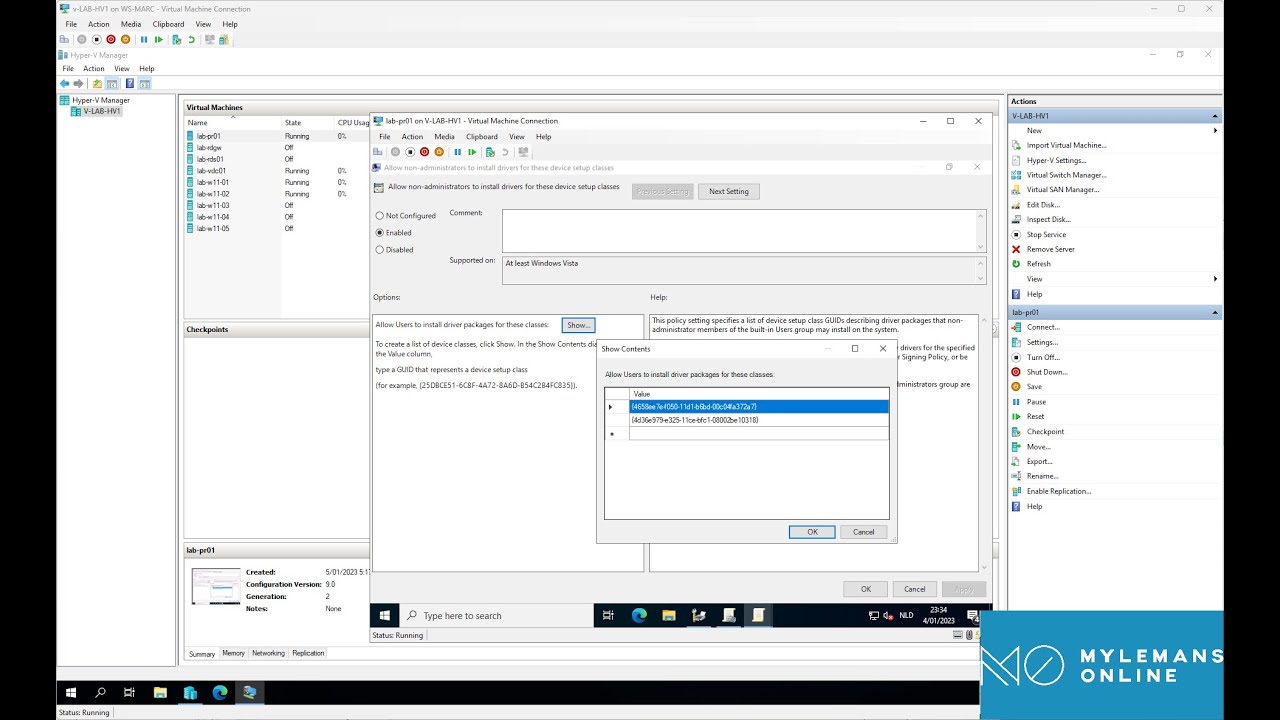
Let standard users install printer drivers on Windows 10/11 with one Group Policy: allow device installation for the Printer and PNPPrinters class GUIDs.
Configure the Point and Print Restrictions GPO on Server 2022 to trust your internal print server so clients install its drivers without elevation prompts.
Add the Print and Document Services role on Windows Server 2022, open Print Management, and deploy a shared printer to users with a Group Policy connection.
Part 5 of the Server 2022 RDS series: install the HTML5 Remote Desktop Web Client with the RDWebClientManagement module so users connect from a browser.
One PowerShell command that reads the Hyper-V guest registry key to tell you which Hyper-V host a VM is running on, handy when you manage several hosts.
Part 4 of the Server 2022 RDS series: install Office 365 on a Session Host with shared computer activation so users sign in with their own licenses.
Part 3 of the Server 2022 RDS series: install and configure FSLogix so user profiles live on a file share instead of the Remote Desktop Session Host.
Strip local admins with Group Policy and give admin rights only to the workstation's Managed By user, via item-level targeting and two LDAP queries.
Part 2 of the Server 2022 RDS series: create Group Policies for Remote Desktop Services that tune session performance and the user experience on the hosts.
Install Azure AD Connect on Server 2022, start with a test group, add Seamless SSO via GPO and group-based licensing, then extend the sync to all OUs.
Part 1 of the Server 2022 RDS series: deploy Connection Broker, Session Host, Web Access and Gateway on two VMs with a Let's Encrypt certificate.
Import ADMX templates for Chrome, Edge, Foxit, OneDrive and Office into Active Directory and deploy third-party software with Group Policy on Server 2022.
Create Organizational Units in Active Directory on Server 2022 and build your first Group Policy Objects to manage users and computers from one place.
Install Active Directory Domain Services on Windows Server 2022, promote the server to a domain controller and set up the DNS role alongside it.
Create a Generation 2 VM on Server 2022 Hyper-V, enable the virtual TPM that Windows 11 requires and run through the Windows 11 installation.
Build a sysprepped VM template in Hyper-V on Server 2022 and deploy VMs from it with the included PowerShell script: CPU, RAM, VLAN and disks.
Enable Data Deduplication on a Server 2022 Hyper-V host and configure it to shrink the storage used by VM templates and VMs that share the same data.
Install the Hyper-V role on Windows Server 2022 through Server Manager and PowerShell, then do the initial configuration before creating your first VM.